
Deleting a job posting is a permanent move — there's no undo button, no "just kidding," no recovering it from some hidden folder. So before you dive in, let's make sure you've got the right access and the right job in your sights.
Before you start
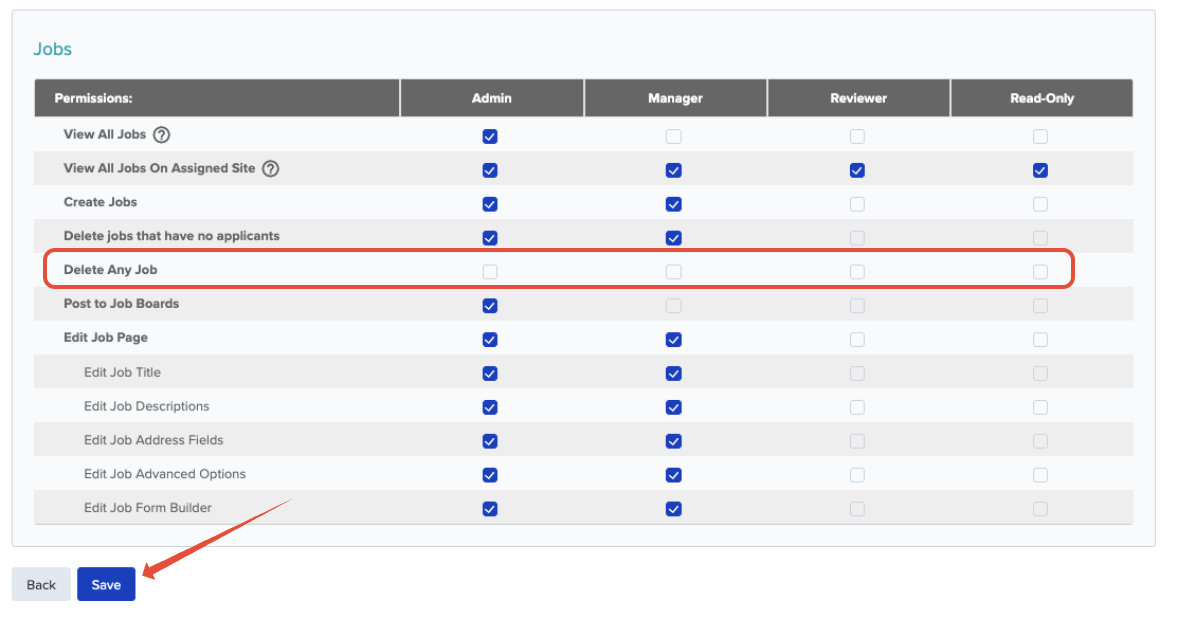
- Who can do this: By default, only the Account Owner can delete a job posting. If your team needs this ability spread to other roles, an Account Owner or Admin can adjust it under Account Details → Roles and Permissions. Don't see that option? Reach out to your Administrator for access.
- Zero applicants: A job posting should only be deleted once it has no applicants attached. If applicants are still assigned, you'll want to move them to another job posting first.
- This is permanent: Once a job is deleted, all of its data — including any applicant records tied to it — is gone for good. Take a breath, double-check the title, and proceed only when you're sure.
Steps
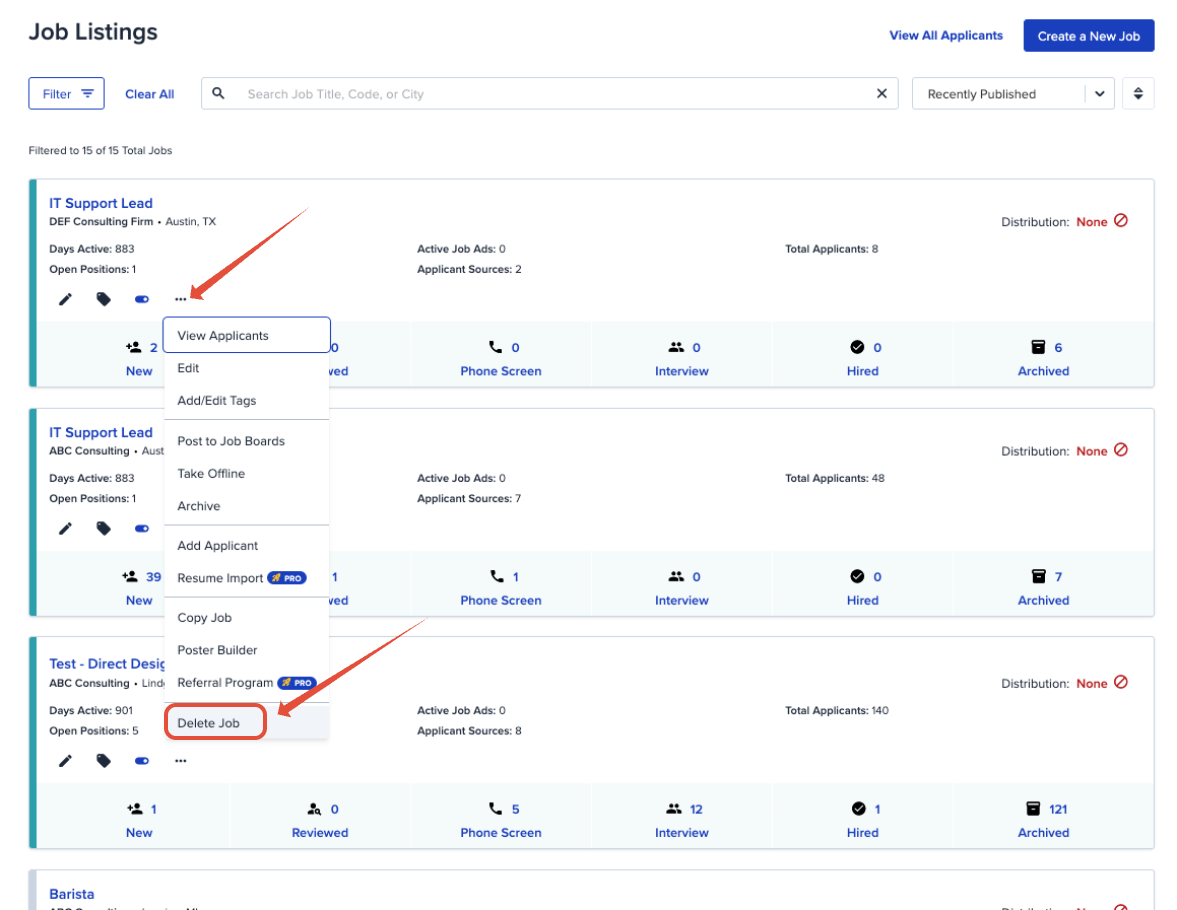
- From your dashboard, find the job posting you want to delete and click the dropdown menu next to its title.
- Select Delete Job from the list.
- A confirmation box will appear:
"Are You Sure? All Job data, including any applicants, will be permanently deleted. This cannot be undone."
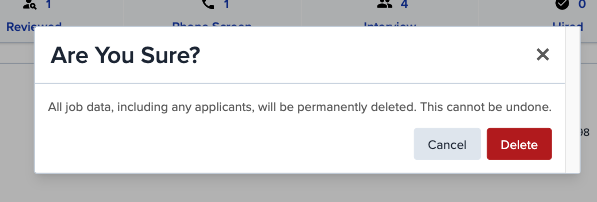
- If you're certain, click the Delete button. Your job posting will be removed immediately.
Deleted the wrong job by accident, or running into a permissions wall you weren't expecting? Our support team is always happy to help sort it out — just reach out any time.
