
Not everyone who builds a job posting needs the keys to send it live. Maybe you want hiring managers drafting jobs while HR gives the final thumbs-up, or maybe you want every opening to go through approval before it hits the job boards. The Post Job Online permission lets you do exactly that: users can keep creating and managing jobs, but only the roles you choose can actually publish them.
Who can change this: Only users who can edit Roles & Permissions on your account (typically Admins) can turn this permission on or off for a role.
What the Post Job Online permission does
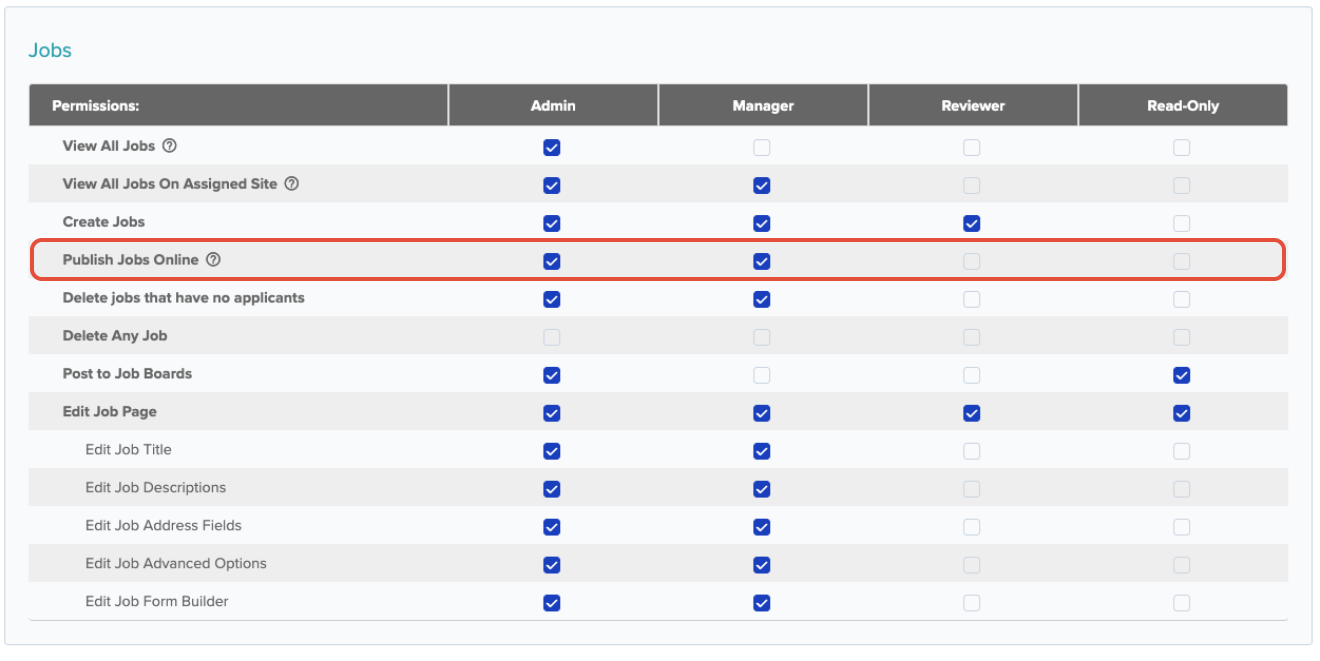
Post Job Online is a standalone permission in the Jobs section of Roles & Permissions, sitting right below Create Jobs.
- Checked: Users with this role can publish jobs online.
- Unchecked: Users with this role can't publish jobs online, but can still create, edit, and manage jobs based on their other permissions.
By default, this permission is off for the Reviewer and Read-Only roles.
The quick version
When a role does not have Post Job Online, users with that role:
- Can edit a job that's already online and save their changes. The job stays online.
- Can take an online job offline (as long as they have Edit Job Page permission).
- Cannot publish an offline or archived job.
- Cannot publish a brand-new job directly. If your company uses Job Requisitions, they can submit the job for approval instead. More on that below.
How to turn the permission on or off
- Please use the Main Menu (☰) to select Account > Account Details > Roles & Permissions.
- Select the role you want to update.
- In the Jobs permission table, find Post Job Online (just below Create Jobs).
- Check the box to allow publishing, or uncheck it to restrict publishing.
- Save your changes.
What restricted users will see
If a user's role doesn't include Post Job Online, the publishing controls are still visible but grayed out. Hovering over any of them shows the message: "You do not have permission to post a job online."
Here's where that shows up:
- Job Header: The Publish Job button is disabled on offline and archived jobs.
- Job card: The Publish Job toggle is disabled on offline and archived jobs.
- Create/edit job page: The Publish Job Online toggle is disabled and set to OFF when creating a new job or editing an offline job.
- Manage Job dropdown: The Publish Job Online option is hidden entirely.
- Post to Job Boards (shopping cart): The Publish Job button in the "Job is offline" alert is disabled. (More on this alert below.)
If a restricted user tries another route
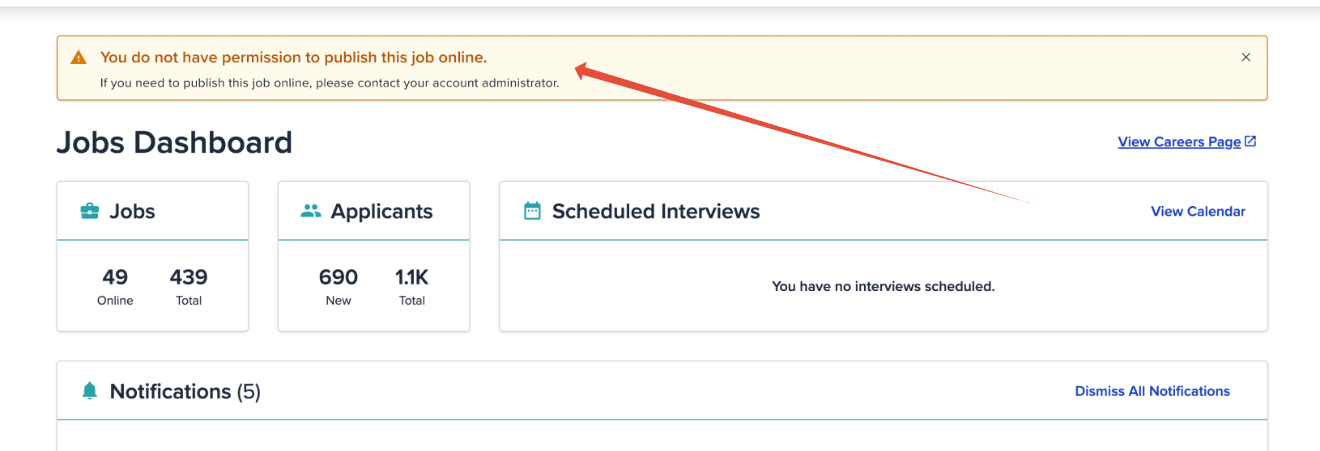
If someone without the permission tries to publish a job another way, such as a direct link, the job won't be published. Instead, they'll land on the Dashboard with this banner:
You do not have permission to publish this job online.
If you need to post this job online, contact your account administrator.
The updated "Job is offline" alert
When you open Post to Job Boards for an offline job, you'll now see a blue info alert reading: "To purchase postings for this job, publish your job online." with a Publish Job button right there, so you can publish without hunting for it.
For users without Post Job Online, the button is disabled.
A note on Edit Job Page vs. Post Job Online
These two permissions work independently, which is handy for setting up roles exactly the way you want:
- Edit Job Page without Post Job Online: The user can edit jobs and take online jobs offline, but can't publish offline jobs.
- Post Job Online without Edit Job Page: The user can publish an offline job using the Publish Job button in the Job Header, the toggle on the job card, or the button in the shopping cart alert. They still can't open the create/edit job page, change job details or tags, or take an online job offline.
How this works with Job Requisitions
If your company uses Job Requisitions, the Post Job Online permission pairs nicely with your approval process. Restricted users can still get jobs moving; they just route them through approval instead of publishing directly.
Submit for Requisition
When a job requires a requisition and hasn't been approved yet, the Publish Job Online toggle on the create/edit job page is replaced with Submit for Requisition.
- It's on by default. Saving the job sends it for approval.
- Toggle it off to save the job as an offline draft and submit it whenever you're ready.
- It's available to every user, regardless of whether their role has Post Job Online.
Once a job has been approved, the usual Publish Job Online toggle returns, and the normal permission rules apply.
Automatically Post Jobs After Approval
Want approved jobs to go live without anyone having to click Publish? Turn on Automatically Post Jobs After Approval in your Approvals settings.
- This setting is off by default.
- When it's on, a job is published online as soon as all approval steps are complete.
- This works even if the job was submitted by a user who doesn't have Post Job Online. The approval is the green light.
Heads up: If this setting is off, approved jobs stay offline until someone with Post Job Online publishes them. Restricted users won't be able to publish their own approved jobs, so make sure someone on your team is ready to take it from there.
Not using requisitions?
No changes for you beyond the permission itself. Users with Post Job Online can publish as usual; users without it can't.
Need a hand?
Setting up roles and approvals can feel like a game of chess, and we're always happy to help you plan your next move. If anything isn't behaving the way you expect, or you'd like help deciding which roles should get publishing access, reach out to our support team anytime.
